M3U · M3U8
M3U player for LG TV
An M3U playlist is a plain text file that lists streams by address, one per line, with a name and a group for each. Your provider gives you a link to one. ZovelyHub plays that link on an LG webOS television and turns the flat list into channels, films and series you can browse with a remote.
What ZovelyHub is
- ZovelyHub is a Smart TV IPTV player.
- It plays a playlist you already have: an M3U link or an Xtream Codes account.
- It is published for LG Smart TVs running webOS. Samsung Tizen is coming soon.
- One activation covers one television. A free trial runs first, on the television itself.
What ZovelyHub is not
- It is not an IPTV provider and does not sell IPTV subscriptions.
- It does not provide, host, resell or distribute channels, films or series.
- It includes no content of any kind. You connect a source you are authorised to use.
- It is not affiliated with or endorsed by Duplex, DuplexPlay or any provider.
Adding an M3U link
Paste it once, on the website
You never type a long address into a television. The link goes into this website, and the paired television picks it up.
- 01
Pair the television
Open ZovelyHub on the LG and enter its code on the activation page. That connects this browser to that set.
- 02
Add the playlist
Choose M3U link, paste the address your provider gave you — an
.m3uor.m3u8link — and give it a name. - 03
Watch
The television downloads the playlist and sorts it into Live TV, Movies and Series, using the groups your provider wrote into the file.
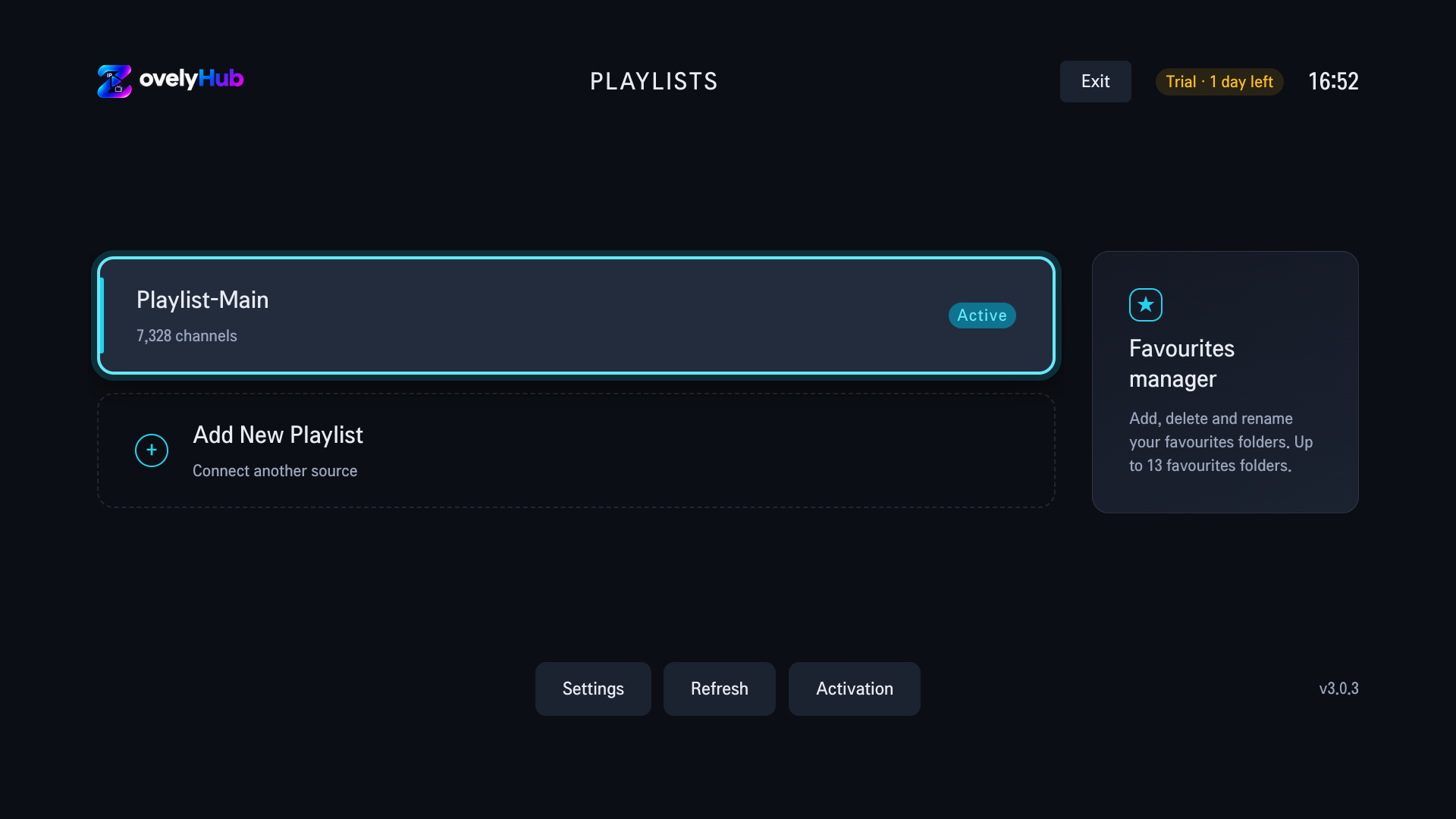
On the television
What an M3U playlist becomes
- Channels, with their categories, under Live TV. Films under Movies and series under Series, where the playlist marks them.
- Refresh fetches what changed since last time. The channels you already have are not re-downloaded to find out they are the same.
- The catalogue is stored on the television, so a restart checks a revision instead of downloading the file again.
- More than one playlist can live on the same set; the playlists screen shows which is active.
Programme information is shown where the playlist or provider supplies it. ZovelyHub does not add a guide of its own.
To be clear
No playlist is included
ZovelyHub does not supply, sell or recommend M3U playlists. The link is yours, from a provider you chose and are authorised to use. If you have an Xtream Codes login instead, see the Xtream Codes guide.
Questions
Asked before
Does ZovelyHub support M3U playlists?
Yes. An M3U or M3U8 playlist link from your provider is one of the two sources the portal accepts. Paste the address once and the television downloads and organises it into channels, films and series.
How do I add my IPTV playlist?
Open ZovelyHub on your television and pair it with this website using the code it shows. Then, on the website, add your playlist: paste an M3U link, or enter the server address, username and password of an Xtream account. The television picks it up on its next refresh.
Can I use more than one playlist?
Yes. A television can hold more than one source, and the playlist screen shows which one is active. Adding a second playlist does not disturb the first, and switching between them does not re-download anything you already have.
Does ZovelyHub include TV channels?
No. ZovelyHub is a media player only. It does not provide channels, playlists, subscriptions, films, or series. You connect a source you already have the right to use, and it plays it on your television.
Try it on your own television
Free to start. Your playlist, your LG.
Open ZovelyHub on the TV, enter its code here, add your playlist.