Bring your own playlist
Connect an M3U link or an Xtream provider account you are authorised to use.
IPTV player for Smart TV · LG webOS
ZovelyHub turns the M3U link or Xtream account you already have into a television interface — live channels, films and series, laid out for a remote and legible from the sofa.
Player only. No channels, films or content subscriptions included.
Real screens, not mock-ups
Captured from an LG television running ZovelyHub. The playlist in these pictures is an example one; the interface is the product.
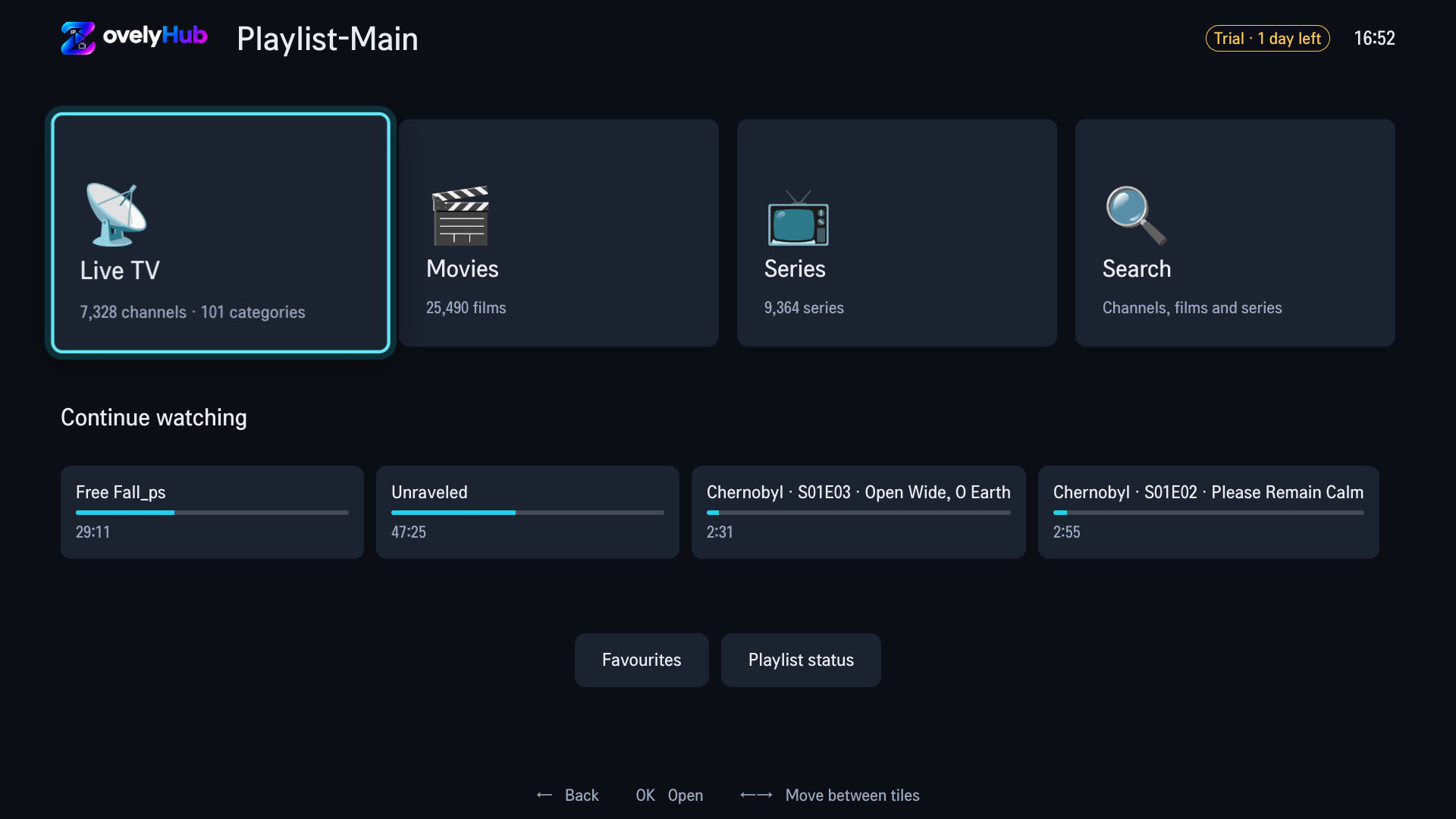
Example playlist shown. ZovelyHub supplies no channels, films or series of its own.
Live TV
The tile tells you what you actually have before you open anything — how many channels came down the playlist, and how many categories your provider grouped them into. Open it and the categories are there as your provider named them, not rearranged into someone else's idea of an order.
Movies & Series
Films and series are kept apart and paged, so a playlist with tens of thousands of entries still opens on a remote instead of scrolling for a minute.
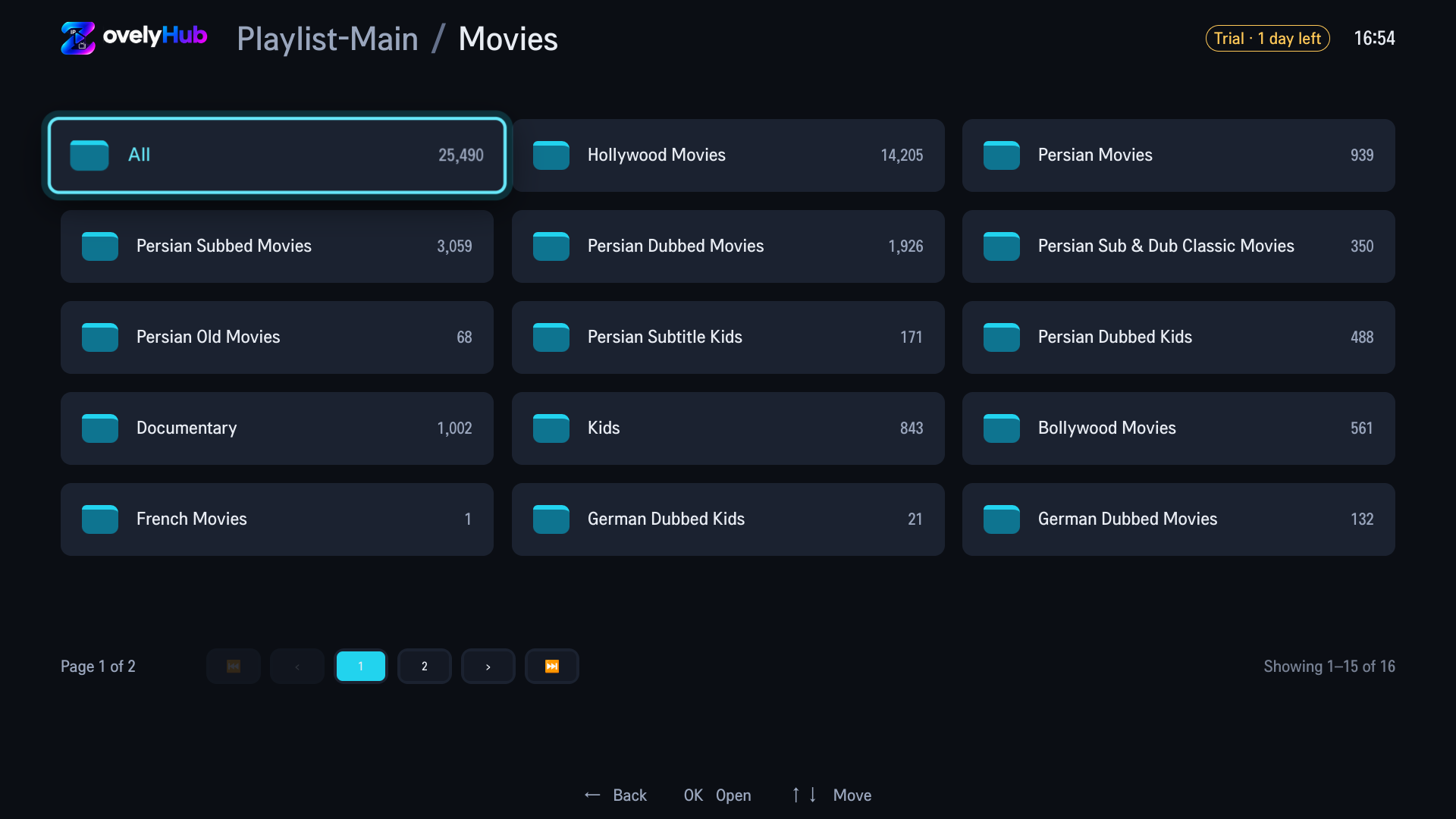
Paged rather than endless, and the page you were on is where you come back to.
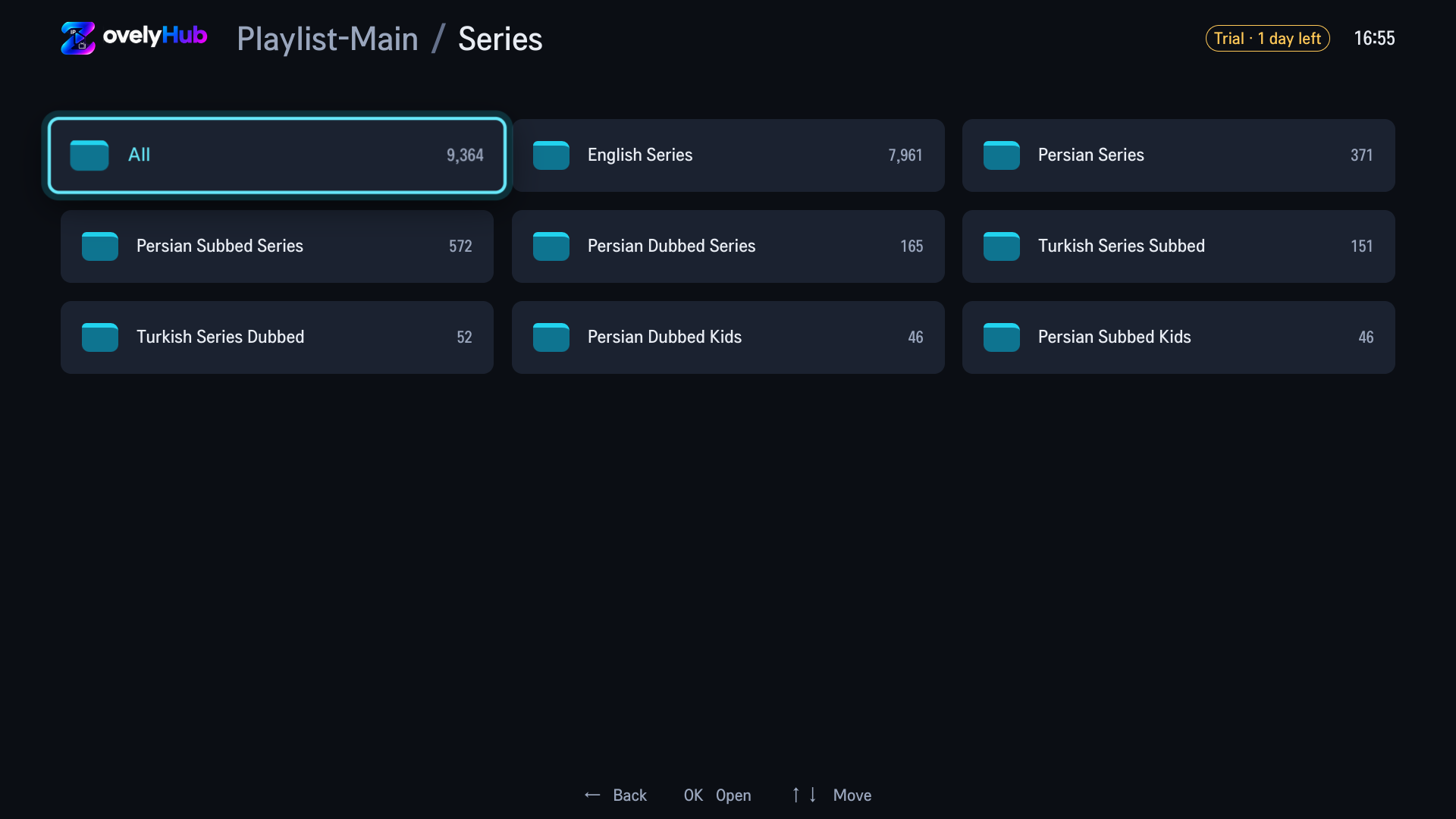
Pick up the next episode from the home screen, with the position you stopped at.
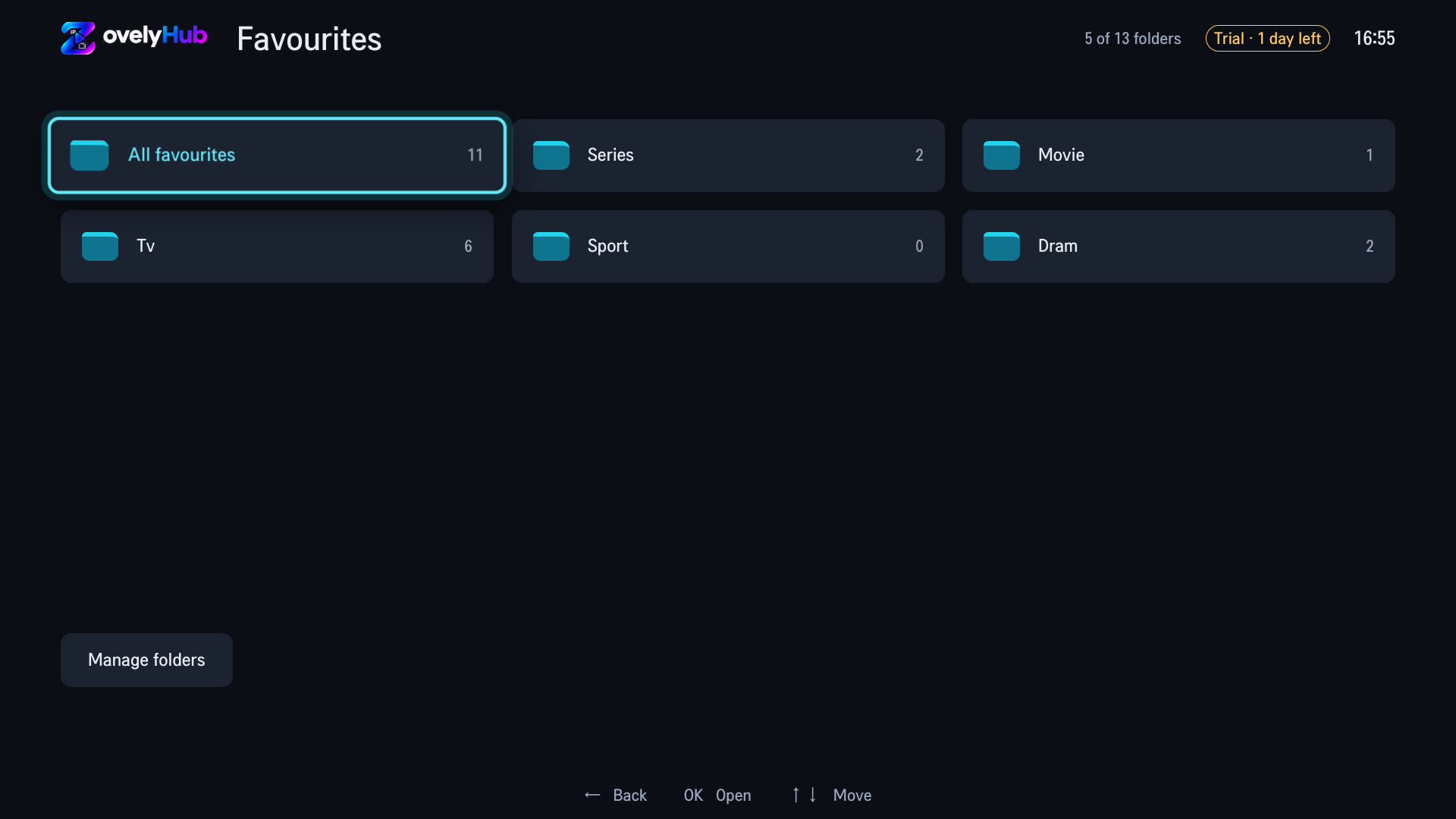
Favourites
Sport in one, the children's channels in another, the series you are mid-way through in a third. Channels, films and series can all go into the same folder, and the counter in the corner tells you how many of the thirteen you have used.
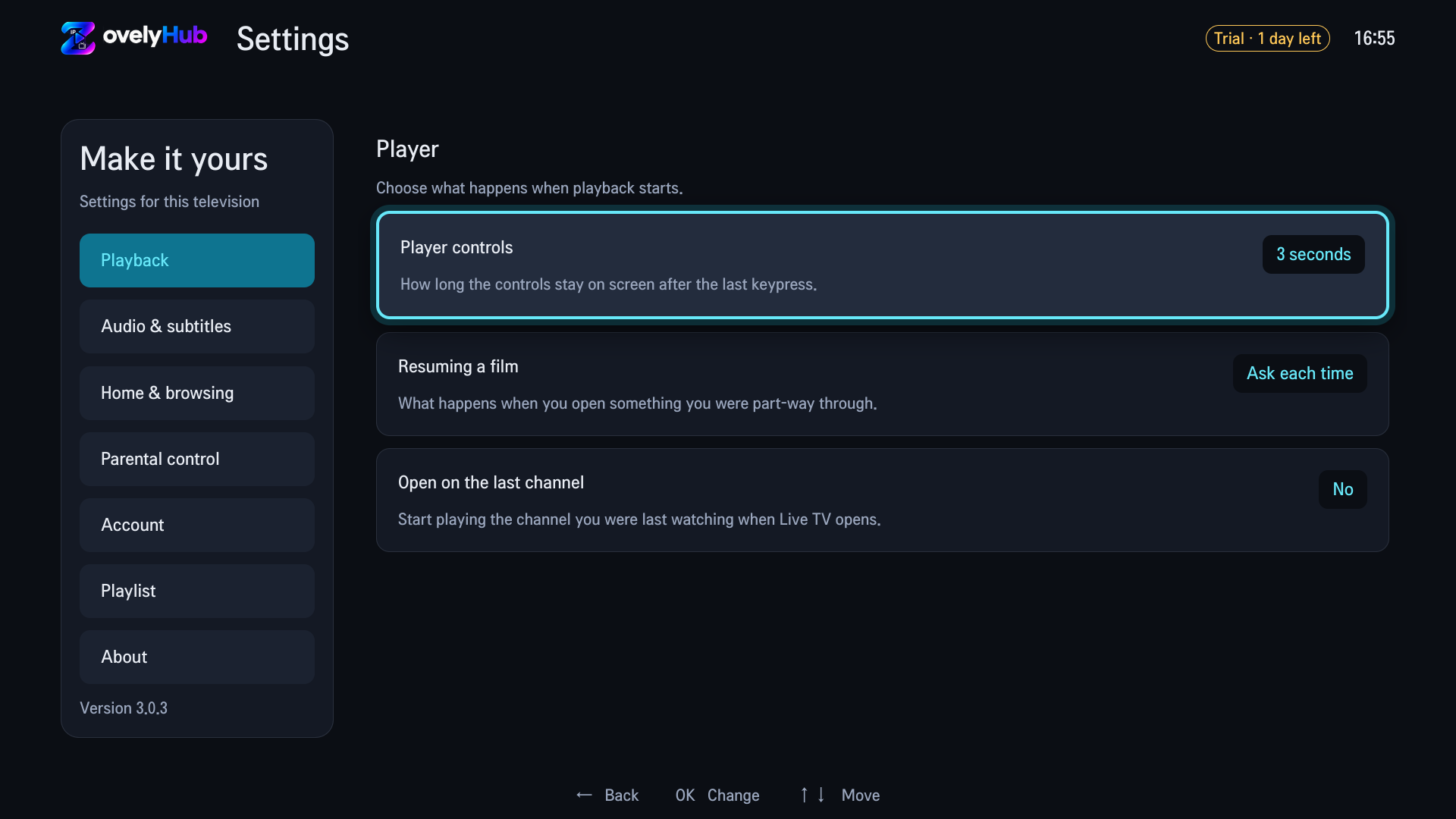
Settings
Each setting says what it does in a sentence, on the screen, at the moment you are changing it — no manual, no glossary, and nothing that needs a browser to reach.
Made for your living room
Everything is designed around getting your own media source onto your television with less friction.
Connect an M3U link or an Xtream provider account you are authorised to use.
Organise your favourite channels, movies and series in up to 13 folders per device. Keep your own collections easy to find.
Designed for LG Smart TVs running webOS. Samsung Tizen support is coming soon; check model compatibility before purchasing.
Set a parental PIN on your TV and protect specific playlist folders or categories. Other folders stay accessible, with no website setup needed.
Search channels, movies and series in your own playlist by name, or narrow your search to the folder you are browsing.
Rename your television, manage playlists, and review device status from this website.
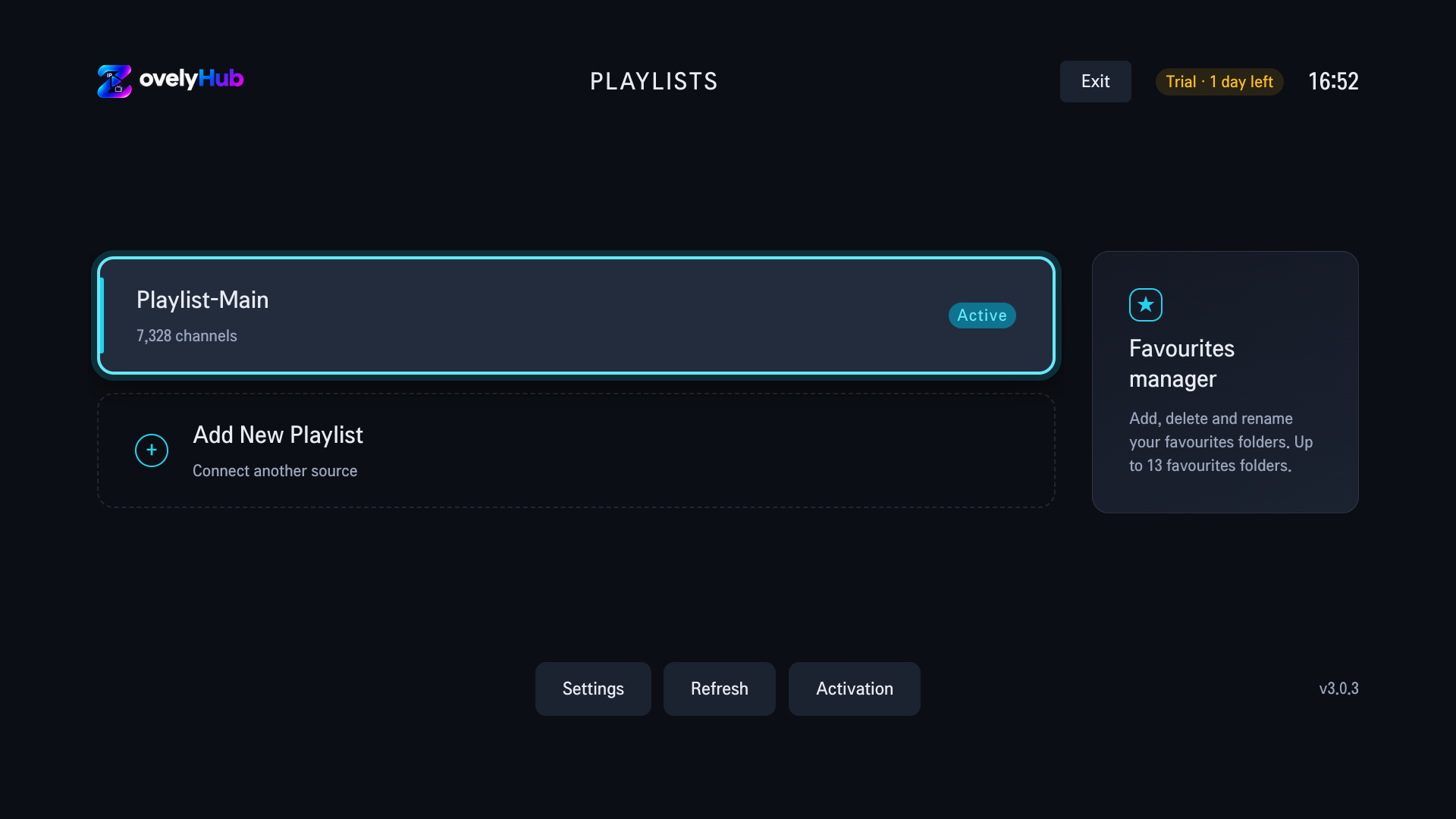
Playlist compatibility
The playlist address your provider gave you, including an M3U8 one. Paste it once on this website and the television picks it up.
Server address, username and password. The password is stored encrypted and is never shown back to anyone, here or on the TV.
Programme information is shown where your provider supplies it. More than one source can live on the same television, and the playlist screen marks which is active. Guides: M3U on LG TV · Xtream Codes on LG TV · the full LG webOS guide.
Supported televisions
ZovelyHub is a television application. There is no box to buy, no stick to plug in and nothing to keep charged.
Install ZovelyHub on an LG Smart TV running webOS and pair it with the code it shows. LG store availability and compatibility depend on your model and region; check before purchasing.
A Tizen build is in preparation. It is not published yet, so nothing on this site is sold on the promise of it — buy an activation for a television you can install on today.
How it works
No complicated account setup. Your television and this site guide you through the connection.
Launch ZovelyHub on your television. The setup screen shows a temporary activation code.
Scan the QR code shown by the app or enter its code on this website.
Connect a supported playlist you are authorised to use, then start watching on the big screen.
Your television creates a short-lived code. Enter it here to securely connect this browser. No customer password is required.
Where can I find my code?Built for television hardware
A television is not a laptop. The app is written for the one it is installed on, not for the newest one on the shelf.
Your catalogue is stored on the television. A restart checks whether anything changed instead of downloading the whole playlist again.
Refreshing a playlist brings across what moved since last time. The channels you already had are not re-imported to find out they are the same.
Categories and results are paged, with first, previous, next and last on the d-pad, so a playlist of tens of thousands of entries is still reachable from a sofa.
Watch positions are kept per television and offered back on the home screen, and you decide whether reopening a film resumes or asks first.
Activation
One activation covers one television. Channels are not included and are not sold here — those come from the provider you already pay.
19.95 USD
One television, no renewal.
9.95 USD
One television, renewed yearly.
Payment is taken on the provider's own page. Card details are never typed on this site.
Clear by design
ZovelyHub is a media player. No channels, playlists or media subscriptions are included.
You choose and remain responsible for every media source added to the application.
Questions, answered
The same answers are marked up for search engines, so what you read here is what they are told. Every question, on one page →
No. ZovelyHub is a media player only. It does not provide channels, playlists, subscriptions, films, or series. You connect a source you already have the right to use, and it plays it on your television.
The portal accepts M3U playlist links and Xtream provider accounts. Your provider supplies those details; ZovelyHub does not. Programme information is shown where your provider supplies it.
ZovelyHub is designed for LG Smart TVs running webOS. Samsung Tizen is coming soon. LG store availability and compatibility depend on your model and region; check before purchasing.
Open ZovelyHub on your television, then enter the temporary code it displays on this website. The television and this site stay in step from that point; you never type a password into the TV.
Yes. The player is free to use for 7 days from the moment you activate your television, and the app shows the days remaining while the trial runs. No payment details and no account are needed to start it. When it ends the player stops until you choose an activation; your playlists, favourites and settings are kept.
No customer account password is required for code-based pairing. The temporary code shown on the television creates a browser session.
Yes. Save channels, movies and series into up to 13 favourites folders per device, and rename or delete those folders from the favourites manager on the TV. Search by name across your playlist or within the folder you are browsing. ZovelyHub searches your own content, not an included streaming catalogue.
Set a four-digit parental PIN directly on your TV, then choose the specific playlist folders or categories you want to lock. Other folders remain accessible. No website setup is needed, and there is no master PIN or support override.
Yes. A television can hold more than one source, and the playlist screen shows which one is active. Adding a second playlist does not disturb the first, and switching between them does not re-download anything you already have.
ZovelyHub is a practical, independent alternative to consider when looking for a DuplexPlayer, Duplex or DuplexPlay replacement. Bring your own M3U or Xtream playlist, organise favourites in up to 13 folders, search your content and PIN-protect selected playlist folders. Check your TV compatibility and try your playlist before buying. ZovelyHub is not affiliated with or endorsed by Duplex or DuplexPlay; their activation licences do not activate ZovelyHub.
Check every character and try again while the code is visible. If it expired or was already used, ask the television to show a fresh code.
Email support@zovelyhub.com for help with the ZovelyHub application. Your playlist provider handles channel and subscription issues.
Your television is waiting
Open ZovelyHub on your TV, then connect it here with the code on screen.